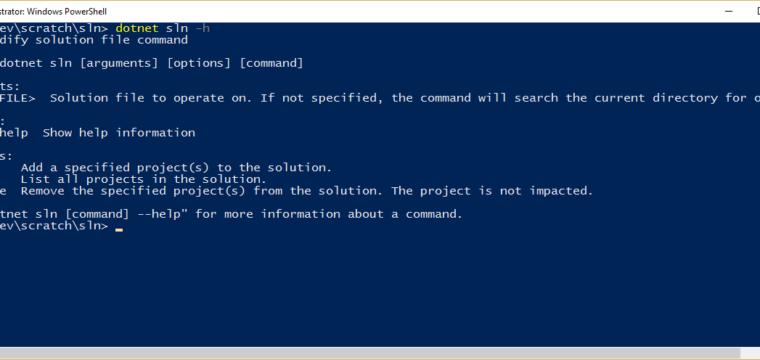
You can use the latest version of the dotnet CLI (installed by default with the latest version of Visual Studio 2017, or available here) to manage the projects included in your solution file(s). The command line tool now exposes three new commands off of the ‘sln’ command:
Add a specified project(s) to the solution:
dotnet sln add <project>

List all projects in the solution:
dotnet sln list

Remove the specified project(s) from the solution. The project is not impacted.
dotnet sln remove <project>
The command accepts the name of the solution file as an optional argument, but if it’s not specified it will use one from the current directory.
Until now in.NET Core, solution files were mainly only useful if you were working with Visual Studio. However, now that the dotnet CLI supports solution files as part of its build commands, being able to manage them from the CLI is quite useful even if you’re not using Visual Studio.